


A potential customer clicks on your Shopify store, excited to buy your product, but after waiting 4 seconds for your page to load, they hit the back button and buy from your competitor instead. This scenario happens millions of times daily, and it’s costing store owners like you serious money.
After 8 years of providing professional SEO services and specializing in Shopify SEO, I’ve seen countless store owners struggle with slow-loading websites. The good news? You don’t need to install another app to fix this problem. In fact, adding more apps often makes things worse.
Google’s research shows that 53% of mobile users abandon sites that take longer than 3 seconds to load. For e-commerce stores, every 100ms delay in page load time can decrease conversions by 7%. When your monthly revenue depends on these conversions, speed isn’t just nice to have – it’s essential for survival.
Why Your Shopify Store Speed Actually Matters More Than You Think
Your page speed affects everything from your Google rankings to your bottom line. During my years conducting SEO audits for hundreds of Shopify stores, I’ve discovered that fast-loading stores consistently outperform their slower competitors in three critical areas.
Search engines prioritize fast websites in their rankings. Google’s Core Web Vitals update made page speed a direct ranking factor, meaning slow stores get buried in search results. When conducting on-page SEO optimization, speed improvements often deliver the biggest ranking boosts I see for clients.
Customer experience drives everything in e-commerce. Amazon found that every 100ms improvement in page speed increased revenue by 1%. For a store generating $50,000 monthly, that’s potentially $500 more revenue just from speed improvements.
Mobile performance becomes even more critical when you consider that mobile traffic accounts for over 60% of e-commerce visits. Mobile users expect lightning-fast experiences, and they’re quick to abandon slow-loading stores.
How Fast Should Your Shopify Store Actually Load?
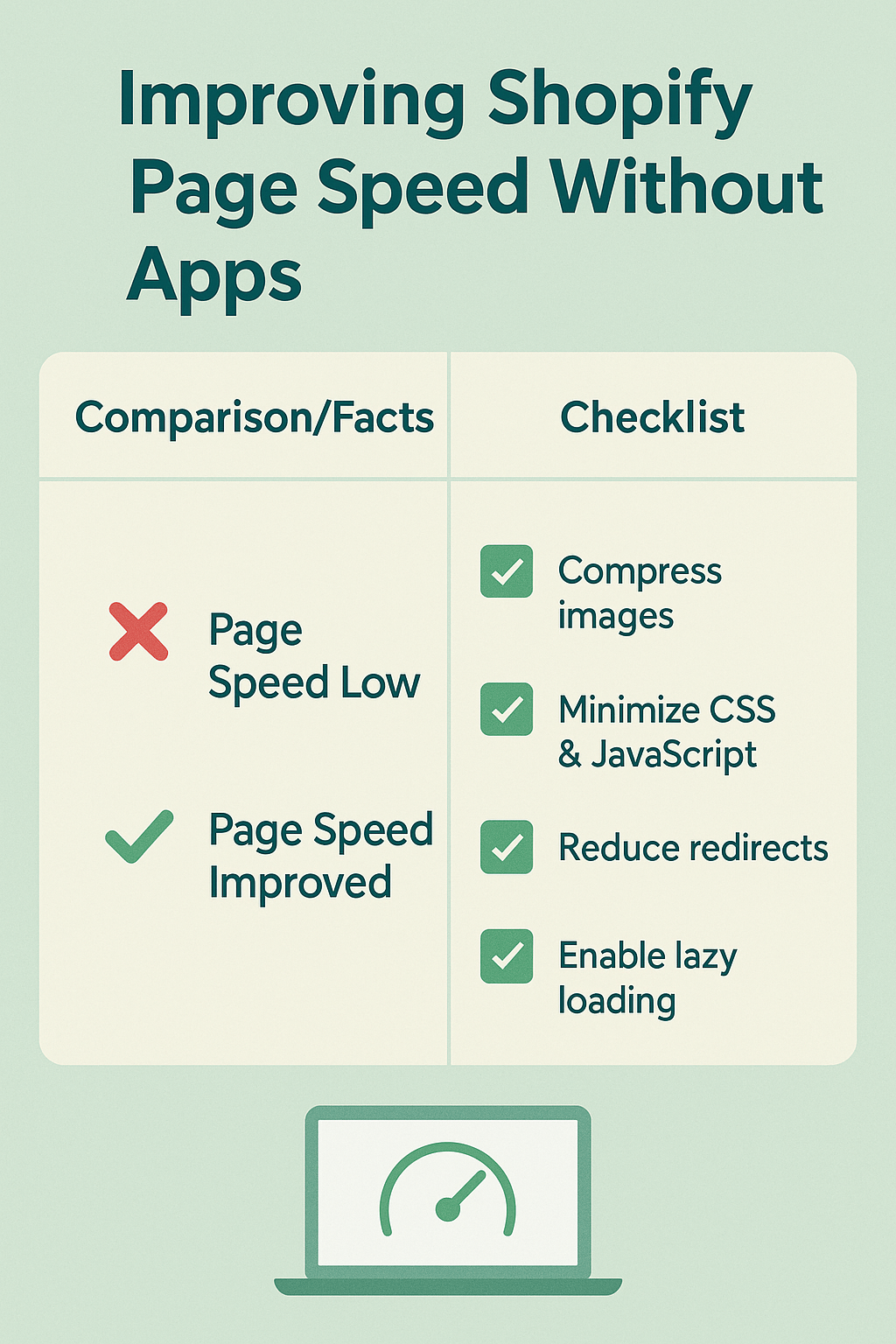
Based on industry benchmarks and my experience with ecommerce SEO projects, your Shopify store should aim for these targets:
Your homepage should load in under 2 seconds on desktop and under 3 seconds on mobile. Product pages can take slightly longer due to images and reviews, but should still stay under 3 seconds on desktop and 4 seconds on mobile.
Google PageSpeed Insights should show scores above 80 for both mobile and desktop. While perfect scores aren’t necessary, anything below 60 indicates serious performance issues that require immediate attention.
Your Core Web Vitals metrics should meet Google’s thresholds: Largest Contentful Paint under 2.5 seconds, First Input Delay under 100ms, and Cumulative Layout Shift under 0.1.
What’s Actually Slowing Down Your Shopify Store Right Now?
During semantic SEO analysis of slow Shopify stores, I consistently find the same culprits causing performance problems. Understanding these bottlenecks helps you prioritize which fixes will deliver the biggest impact.
Large, unoptimized images typically account for 60-80% of page weight on most Shopify stores. A single product photo can easily exceed 2MB if not properly optimized, forcing visitors to download massive files just to see your products.
Too many apps create a cascade of performance problems. Each app adds JavaScript, CSS, and external requests to your store. I’ve seen stores with 50+ apps where removing just 10 unused ones improved load times by 40%.
Heavy themes with excessive features slow everything down. Many premium themes include dozens of features you’ll never use, but your visitors still have to download all that code on every page visit.
Third-party scripts from social media widgets, analytics tools, and marketing platforms can add 2-3 seconds to your load time. These scripts often load synchronously, blocking other important content from displaying.
Method 1: Optimize Your Images Like a Pro Without Losing Quality
Image optimization delivers the biggest speed improvements for most Shopify stores. After implementing proper image optimization across hundreds of client stores, I can confidently say this single change typically improves load times by 30-50%.
Start by using the correct image formats for different purposes. WebP format reduces file sizes by 25-35% compared to JPEG without quality loss, and Shopify now supports WebP uploads. For product photos with solid backgrounds, PNG works well, but avoid it for complex images where JPEG performs better.
Resize images to their actual display dimensions before uploading. If your product images display at 600×600 pixels, don’t upload 2000×2000 pixel files. This simple step can reduce file sizes by 80% or more.
Compress images using tools like TinyPNG or Squoosh before uploading to Shopify. Aim for file sizes under 100KB for product images and under 50KB for thumbnails. Most images can achieve these targets while maintaining excellent visual quality.
Implement proper image loading strategies by using Shopify’s native lazy loading features. Add loading=”lazy” attributes to images below the fold, so they only load when visitors scroll down to see them.
Method 2: Choose and Configure Your Theme for Maximum Speed
Your theme choice impacts every aspect of your store’s performance. During local SEO projects for brick-and-mortar businesses expanding online, I’ve seen how theme selection can make or break their digital success.
Select lightweight themes designed for performance over flashy features. Themes like Dawn (Shopify’s default), Impulse, or Debut prioritize speed while still looking professional. Avoid themes with excessive animations, auto-playing videos, or complex mega menus unless absolutely necessary.
Remove unused theme features that add unnecessary code to your pages. Most themes include features like blog sections, multiple product image styles, or complex filtering options you might not need. Disabling these features in your theme settings can improve load times by 10-20%.
Optimize your theme’s CSS and JavaScript by removing unused code. If you’re comfortable with code, use tools like PurgeCSS to eliminate unused CSS rules. For JavaScript, remove any unused libraries or plugins that came with your theme.
Configure your theme’s loading priorities correctly. Critical CSS should load first, followed by above-the-fold content, then everything else. This ensures visitors see your main content immediately while other elements load in the background.
Method 3: Streamline Your Apps and Remove Performance Killers
App management requires a strategic approach that balances functionality with performance. During comprehensive SEO audits, I regularly find stores with 30+ apps where only 10-15 actually contribute to business goals.
Conduct a thorough app audit every quarter to identify unused or redundant applications. List every installed app, note its last usage date, and evaluate whether it directly contributes to sales or essential functions. Uninstall any app you haven’t used in 3+ months.
Identify apps that duplicate functionality and consolidate where possible. For example, if you have separate apps for email marketing, SMS marketing, and push notifications, consider switching to a unified platform that handles all three functions.
Replace heavy apps with lighter alternatives when functionality overlap exists. Instead of using a complex review app that adds 500KB of code, consider a simpler solution or even Shopify’s built-in review features for basic needs.
Monitor app performance impact using browser developer tools or services like GTmetrix. Apps that add more than 200KB of resources or cause rendering delays should be evaluated for replacement or removal.
Method 4: Master Advanced Image Optimization Techniques
Beyond basic compression, advanced image optimization techniques can further improve your store’s performance. These methods require more technical knowledge but deliver significant results.
Implement responsive images using Shopify’s image transformation URLs. This ensures mobile visitors download appropriately sized images for their devices, reducing data usage and load times. Use Shopify’s URL parameters like ?width=800 to serve different image sizes to different devices.
Use CSS sprites for small icons and decorative elements to reduce HTTP requests. Combining multiple small images into a single file and using CSS to display specific portions reduces the number of server requests required to load your pages.
Optimize image loading order by prioritizing above-the-fold images. Critical product images should load immediately, while gallery images and related product photos can use lazy loading to improve perceived performance.
Consider using SVG format for logos, icons, and simple graphics. SVG files are vector-based, so they scale perfectly at any size while often being smaller than equivalent raster images.
Method 5: Optimize Your Code and Eliminate Bloat
Code optimization requires technical expertise but can dramatically improve performance. These techniques focus on reducing the amount of code browsers need to download and process.
Minify your CSS and JavaScript files to remove unnecessary characters, comments, and whitespace. This typically reduces file sizes by 15-25% without affecting functionality. Many online tools can handle this automatically.
Combine CSS files where possible to reduce HTTP requests. Instead of loading 5 separate CSS files, combine them into 1-2 files. However, be careful not to create overly large files that delay initial rendering.
Remove unused CSS rules that add unnecessary weight to your stylesheets. Tools like UnCSS can automatically identify and remove CSS rules that aren’t used on your actual pages.
Optimize JavaScript loading by deferring non-critical scripts. Scripts for analytics, social media widgets, or marketing tools should load after your main content is visible to users.
Method 6: Leverage Browser Caching and CDN Benefits
Proper caching strategies ensure returning visitors experience blazing-fast load times. While Shopify handles most caching automatically, you can optimize how browsers cache your content.
Understand Shopify’s built-in CDN capabilities and how to maximize their effectiveness. Shopify automatically serves your images and assets through their global CDN, but proper file naming and organization can improve cache hit rates.
Optimize cache headers for different types of content. Static assets like images, CSS, and JavaScript should have long cache expiration times, while dynamic content like product inventory should update more frequently.
Implement service worker caching for returning visitors. This advanced technique can make your store load almost instantly for repeat visitors by storing critical resources locally in their browsers.
Use browser prefetching strategically to load likely next pages in the background. For example, prefetch category pages when users hover over navigation menus, or preload checkout pages when users add items to cart.
Method 7: Database and Backend Optimization Strategies
While you can’t directly access Shopify’s database, several strategies can improve backend performance and reduce server response times.
Optimize your product catalog structure to reduce database query complexity. Logical categorization, proper tagging, and efficient collection structures help Shopify serve your content faster.
Minimize the number of product variants and options where possible. Products with dozens of variants require more database queries to load, especially when displaying pricing and inventory information.
Clean up your admin area by removing unused products, customers, and orders. While this doesn’t directly affect frontend performance, it can improve admin loading times and indirectly benefit store performance.
Optimize your search functionality by using Shopify’s built-in search instead of third-party solutions when possible. External search apps add additional API calls and complexity that can slow down your store.
Method 8: Monitor and Maintain Your Speed Improvements
Speed optimization isn’t a one-time task – it requires ongoing monitoring and maintenance to maintain performance gains over time.
Set up regular speed monitoring using tools like Google PageSpeed Insights, GTmetrix, or Pingdom. Check your store’s performance weekly and investigate any significant changes in load times or performance scores.
Create a performance budget that sets limits on page weight, number of HTTP requests, and load times. This helps you make informed decisions about new features or design changes that might impact speed.
Monitor Core Web Vitals through Google Search Console to understand how real users experience your store. This data is more valuable than synthetic testing because it reflects actual visitor experiences.
Conduct quarterly performance audits to identify new optimization opportunities. As your store grows and evolves, new performance bottlenecks will emerge that require attention.
What You Should Do Right Now to Start Seeing Results
Speed optimization works best when approached systematically rather than randomly trying different techniques. Based on my experience with hundreds of Shopify stores, this priority order delivers the fastest results.
Start with image optimization since it typically provides the biggest immediate impact. Spend your first day compressing and properly sizing your product images, starting with your homepage and best-selling products.
Next, audit your apps and remove anything unnecessary. This single step often improves load times by 20-30% while also reducing your monthly app expenses.
Then optimize your theme settings by disabling unused features and ensuring proper loading priorities. This requires minimal technical knowledge but can deliver significant performance improvements.
Finally, implement monitoring tools to track your progress and maintain your improvements over time. Consistent monitoring prevents performance regression and helps you catch new issues quickly.
Remember that speed optimization is an ongoing process, not a one-time fix. The techniques in this guide will significantly improve your Shopify store’s performance, but maintaining those improvements requires regular attention and monitoring. Start with the methods that match your technical comfort level, and gradually implement more advanced techniques as you gain experience.
Your customers will notice the difference immediately, and your conversion rates will thank you for the effort. Fast stores don’t just rank better in search engines – they create better customer experiences that drive more sales and build stronger businesses.