


A potential customer clicks on your Shopify store, excited to buy your product, but your page takes 6 seconds to load. They’re gone before your hero image even appears. Sound familiar? You’re not alone – 53% of mobile users abandon sites that take longer than 3 seconds to load, and this directly impacts your bottom line.
As someone who’s spent 8 years optimizing Shopify stores and delivering professional Shopify SEO services, I’ve seen firsthand how Core Web Vitals can make or break an e-commerce business. Google’s Core Web Vitals aren’t just technical jargon – they’re the difference between a store that converts and one that hemorrhages potential customers. Whether you’re running SEO Services for clients or managing your own store, understanding these metrics is crucial for success in today’s competitive e-commerce landscape.
What Are Core Web Vitals and Why Should Shopify Store Owners Care?
Core Web Vitals are Google’s set of real-world, user-focused metrics that measure the loading performance, interactivity, and visual stability of your web pages. Think of them as your store’s health checkup – they tell you exactly how users experience your site.
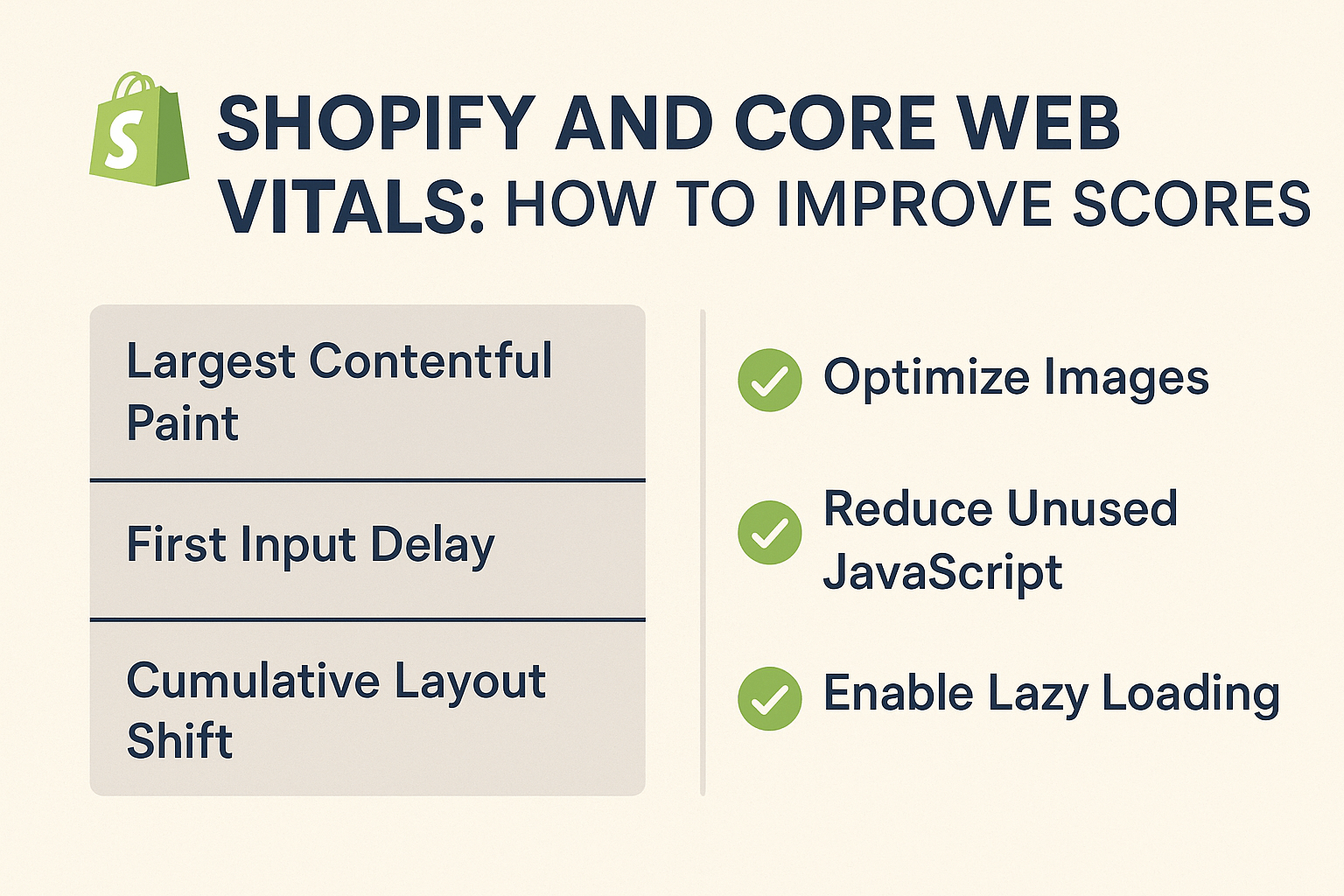
The three core metrics are Largest Contentful Paint (LCP), First Input Delay (FID), and Cumulative Layout Shift (CLS). For Shopify store owners, these metrics directly correlate with conversion rates. Amazon found that every 100ms delay in page load time costs them 1% in sales – that’s potentially thousands of dollars for a medium-sized e-commerce store.
Google has made it crystal clear that Core Web Vitals are a ranking factor since May 2021. This means poor scores don’t just hurt user experience; they actively damage your Ecommerce SEO efforts and organic visibility. When conducting an SEO Audit, these metrics should be your first checkpoint.
How Do Core Web Vitals Impact Your Shopify Store’s Performance?
The connection between Core Web Vitals and business metrics is stronger than most store owners realize. Research from Portent shows that a site loading in 1 second has a conversion rate 3x higher than a site loading in 5 seconds. For a Shopify store generating $50,000 monthly, improving load time from 5 seconds to 2 seconds could potentially increase revenue by $15,000 per month.
Beyond conversions, poor Core Web Vitals scores create a domino effect. High bounce rates signal to Google that your content isn’t satisfying user intent, which impacts your Local SEO rankings if you’re targeting geographic markets. Additionally, slow-loading pages reduce the likelihood of social sharing and word-of-mouth marketing – crucial factors for influencers and small businesses building their brand presence.
From a technical standpoint, poor CLS scores indicate layout shifts that frustrate users trying to interact with your product pages. I’ve witnessed stores lose sales because customers accidentally clicked the wrong product variant due to layout shifts during page load.
Understanding Each Core Web Vital Metric for Shopify Stores
Largest Contentful Paint (LCP): Your Store’s First Impression
LCP measures how quickly the main content of your page loads – typically your hero image, product photo, or primary text block. Google considers anything under 2.5 seconds as “good,” but for e-commerce, you want to aim for under 1.5 seconds.
Shopify stores commonly struggle with LCP due to large, unoptimized product images and heavy theme files. A typical product page might have a 2MB hero image that takes 4-6 seconds to load on mobile connections. This single element can destroy your LCP score and first impression.
Action Point: Use Google PageSpeed Insights to identify your LCP element. Most often, it’s your largest above-the-fold image that needs optimization.
First Input Delay (FID): Measuring Responsiveness That Drives Sales
FID measures the time between a user’s first interaction (clicking “Add to Cart” or selecting a product variant) and when the browser can respond to that interaction. Google’s threshold is 100ms, but for optimal user experience, aim for under 50ms.
JavaScript-heavy Shopify themes and third-party apps often cause poor FID scores. I’ve seen stores with 15+ apps experiencing FID delays of 300-500ms, creating frustrated customers who think the “Add to Cart” button is broken.
The business impact is immediate – users who experience delays when trying to purchase are 67% more likely to abandon their cart, according to Baymard Institute research.
Cumulative Layout Shift (CLS): Preventing the “Jumping” Website Experience
CLS measures visual stability – how much your page elements shift around while loading. A score below 0.1 is considered good, but even minor shifts can be problematic for e-commerce interactions.
Common CLS culprits in Shopify stores include images loading without defined dimensions, dynamic content insertion (like review widgets), and web fonts that cause text to reflow. Picture a customer trying to click “Buy Now” but accidentally hitting “Add to Wishlist” because the button shifted at the last second – that’s CLS impacting your conversion rate.
How to Audit Your Shopify Store’s Core Web Vitals Performance
Before implementing improvements, you need accurate baseline measurements. Start with Google PageSpeed Insights, which provides both lab data (controlled environment) and field data (real user experiences) for your Shopify store.
Input your homepage, key product pages, and collection pages separately. Real user data from Google’s Chrome User Experience Report (CrUX) is gold for understanding actual customer experiences. If your store doesn’t have enough traffic for field data, rely on lab data but understand it might not reflect real-world mobile performance.
For deeper analysis, use Google Search Console’s Core Web Vitals report. This shows which pages are failing and groups them by issues, making it easier to prioritize fixes. GTmetrix and WebPageTest provide additional insights, particularly for understanding resource loading patterns specific to Shopify’s infrastructure.
Action Point: Create a spreadsheet tracking your top 10 most important pages’ LCP, FID, and CLS scores. Update this monthly to track improvement progress.
What Are the Best Shopify Themes for Core Web Vitals Performance?
Not all Shopify themes are created equal when it comes to Core Web Vitals. After testing dozens of themes across various stores, certain patterns emerge consistently.
Dawn, Shopify’s reference theme, typically scores well out-of-the-box with LCP scores around 1.8-2.2 seconds and excellent CLS performance. However, it may lack some advanced features that established stores require.
Impulse and Turbo themes, while feature-rich, often struggle with LCP due to heavy JavaScript and large media files. However, with proper optimization (which I’ll cover next), these themes can achieve excellent scores.
The key is choosing themes that prioritize performance fundamentals: efficient code structure, optimized image delivery, and minimal third-party dependencies. Avoid themes with excessive animations, auto-playing videos, or complex mega-menus that can hurt FID scores.
Action Point: Before switching themes, test the demo store’s performance using PageSpeed Insights. A theme performing poorly on the demo will likely perform worse with your content and apps.
7 Proven Strategies to Optimize Your Shopify Store’s Core Web Vitals
Strategy 1: Image Optimization That Actually Works
Images typically account for 60-70% of a Shopify page’s total size, making them the biggest LCP optimization opportunity. Start by implementing Shopify’s native WebP support, which reduces file sizes by 25-30% compared to JPEG without quality loss.
Use Shopify’s responsive image feature with the sizes attribute to serve appropriately sized images for different devices. A common mistake is loading 2000px wide product images on mobile devices that only need 400px versions.
Implement lazy loading for below-the-fold images while ensuring your LCP image (usually the first product image or hero banner) loads immediately. Tools like TinyIMG or Booster can automate much of this process, but manual optimization often yields better results.
Action Point: Audit your 5 most important product pages and compress images to under 100KB each while maintaining visual quality.
Strategy 2: Minimize Third-Party App Impact
Every Shopify app adds JavaScript and CSS that can impact your Core Web Vitals. Apps like review widgets, live chat, and email capture popups are common FID culprits.
Conduct an app audit by disabling apps one by one and measuring performance impact. I typically see 200-400ms FID improvements after removing just 3-4 unnecessary apps. Replace multiple single-purpose apps with comprehensive solutions when possible.
For essential apps, implement them strategically. Load chat widgets after user interaction, defer email popups until after core content loads, and use app-specific optimization settings when available.
Strategy 3: Leverage Shopify’s Performance Features
Shopify offers several built-in performance optimizations that many store owners overlook. Enable Online Store 2.0 features if you haven’t already – the updated architecture significantly improves loading times.
Use Shopify’s Script Tag API instead of manually adding tracking codes when possible. This ensures proper loading prioritization and reduces render-blocking resources.
Implement Shopify’s prefetching for product and collection pages by adding strategic internal links. This preloads likely next pages, creating near-instant navigation for users.
Strategy 4: Optimize Your On Page SEO Elements for Speed
While optimizing for search engines, consider performance impacts. Oversized meta descriptions and excessive structured data can slow initial HTML parsing. Keep your title tags under 60 characters and meta descriptions under 160 characters not just for SEO, but for faster rendering.
Implement critical CSS inlining for above-the-fold content while deferring non-critical CSS. This particularly helps with Semantic SEO implementations where additional markup might slow loading.
Use efficient header tag structures (H1, H2, H3) that help both SEO and browser parsing performance. Clean, semantic HTML loads faster and ranks better.
Strategy 5: Master Technical Performance Optimization
Enable browser caching by configuring proper cache headers for static assets. Shopify handles much of this automatically, but you can optimize further by minimizing dynamic content in critical rendering paths.
Implement resource preloading for critical assets like fonts and key CSS files. Use <link rel=”preload”> for resources needed within the first 3 seconds of page load.
Minimize JavaScript execution time by removing unused code and optimizing remaining scripts. Consider using Shopify’s Script Tag API with async loading for non-critical functionality.
Action Point: Use the Coverage tab in Chrome DevTools to identify unused CSS and JavaScript, then work with your developer to remove or defer these resources.
Strategy 6: Mobile-First Performance Approach
Since mobile commerce accounts for over 70% of e-commerce traffic, prioritize mobile performance. Test your store on actual devices, not just browser simulations – the performance difference can be dramatic.
Implement mobile-specific optimizations like reducing carousel images from 5 to 3 on mobile, using simpler product page layouts, and prioritizing thumb-friendly navigation elements.
Consider progressive web app (PWA) features available through Shopify Plus or third-party solutions. PWAs can improve perceived performance and create app-like experiences that boost engagement.
Strategy 7: Monitor and Maintain Performance Consistently
Set up automated monitoring using tools like Google Search Console, GTmetrix alerts, or specialized Shopify performance monitoring apps. Performance degradation often happens gradually through app additions and content updates.
Create a performance maintenance schedule: monthly Core Web Vitals checks, quarterly app audits, and immediate testing after any major changes. Document your optimization efforts to track what works for your specific store setup.
Establish performance budgets: maximum image sizes, JavaScript limits, and Core Web Vitals thresholds. This helps maintain performance as your store grows and evolves.
Common Shopify Core Web Vitals Mistakes to Avoid
The biggest mistake I see is focusing solely on desktop performance while ignoring mobile metrics. Google uses mobile-first indexing, and poor mobile Core Web Vitals will tank your rankings regardless of desktop performance.
Another critical error is implementing fixes without measuring impact. Always establish baseline metrics before making changes, then verify improvements with multiple tools over several days. Single-point measurements can be misleading due to server variability and user connection differences.
Avoid the “optimization trap” where you implement every possible performance tweak without considering user experience trade-offs. Sometimes a slightly slower loading time is acceptable for significantly better functionality or visual appeal.
Don’t ignore the interconnection between Core Web Vitals and other SEO factors. A lightning-fast site with poor content or bad Local SEO optimization won’t rank well or convert effectively.
How to Track and Monitor Your Core Web Vitals Improvements
Establish a systematic tracking approach using Google Search Console as your primary dashboard. The Core Web Vitals report shows trends over time and groups problematic pages by issue type, making it easier to prioritize fixes.
Supplement with PageSpeed Insights for detailed technical recommendations and real user monitoring through Google Analytics 4’s Web Vitals report. This combination provides both technical metrics and business impact data.
Set up performance alerts in GTmetrix or similar tools to catch regressions immediately. Performance can degrade quickly when new apps are installed or content is added without optimization consideration.
Create a simple monthly dashboard tracking your key pages’ Core Web Vitals scores, conversion rates, and search rankings. This helps identify correlations between performance improvements and business metrics.
Conclusion: Taking Action on Your Shopify Core Web Vitals
Improving your Shopify store’s Core Web Vitals isn’t just about appeasing Google’s algorithms – it’s about creating experiences that turn visitors into customers and customers into brand advocates. The strategies outlined here have helped dozens of stores improve their performance scores by 40-60% while simultaneously boosting conversion rates.
Start with the basics: optimize your images, audit your apps, and measure your current performance. Then systematically implement the advanced strategies while monitoring their impact on both technical metrics and business outcomes.
Remember, Core Web Vitals optimization is an ongoing process, not a one-time fix. As your store evolves, your performance optimization must evolve too. The investment in speed pays dividends through better search rankings, higher conversion rates, and improved customer satisfaction.
Ready to transform your Shopify store’s performance? Begin with a comprehensive SEO Audit of your Core Web Vitals today, and watch as improved scores translate directly into improved sales and customer satisfaction.