


You’ve built a stunning Shopify store, invested in quality products, and crafted compelling descriptions, but your organic traffic remains frustratingly low. Here’s the reality check – 68% of online experiences begin with a search engine, yet most e-commerce store owners are flying blind without proper search performance data. This is where Google Search Console becomes your secret weapon.
As someone who’s helped hundreds of businesses optimize their online presence through comprehensive Shopify SEO strategies, I can tell you that setting up Google Search Console isn’t just recommended – it’s absolutely essential for any serious e-commerce operation. Whether you’re running SEO Services for clients or managing your own store, this free tool from Google provides invaluable insights that can transform your search visibility.
In this comprehensive guide, I’ll walk you through the exact process of connecting Google Search Console with your Shopify store, share real-world examples from successful implementations, and reveal the optimization strategies that have helped my clients achieve 300% increases in organic traffic. Let’s dive into the step-by-step process that will give you complete control over your store’s search performance.
Why Google Search Console is Critical for Your Shopify Store’s Success
Google Search Console serves as your direct communication line with Google’s search engine. Think of it as having a conversation with the algorithm that determines whether your products appear on page one or page ten of search results. The data you’ll access through this platform directly impacts your Ecommerce SEO success and overall business growth.
Recent studies show that 75% of users never scroll past the first page of search results, making your search visibility absolutely crucial. Without Google Search Console, you’re essentially running your SEO efforts in the dark, missing critical opportunities to improve your rankings and drive qualified traffic to your products.
The tool provides real-time data about how Google crawls, indexes, and serves your Shopify store in search results. You’ll discover which keywords are driving traffic, identify technical issues that might be hurting your rankings, and receive important notifications about manual penalties or security issues. For e-commerce businesses, this translates directly into better product visibility, increased organic traffic, and ultimately, more sales.
What Exactly Does Google Search Console Do for E-commerce Stores?
Google Search Console functions as your SEO dashboard, providing four main categories of actionable data that directly impact your store’s performance. Understanding these capabilities will help you maximize the tool’s potential for your business growth.
Performance data shows you exactly which search queries are bringing visitors to your store, how often your pages appear in search results, and your average position for important keywords. Coverage reports reveal indexing issues that might prevent your products from appearing in search results, while the URL inspection tool lets you check individual pages for crawling and indexing problems.
The tool also monitors your site’s Core Web Vitals, which Google uses as ranking factors. Page experience metrics like loading speed, interactivity, and visual stability directly affect both your search rankings and conversion rates. Studies indicate that a one-second delay in page load time can reduce conversions by 7%, making these insights incredibly valuable for your bottom line.
How to Access and Set Up Your Google Search Console Account
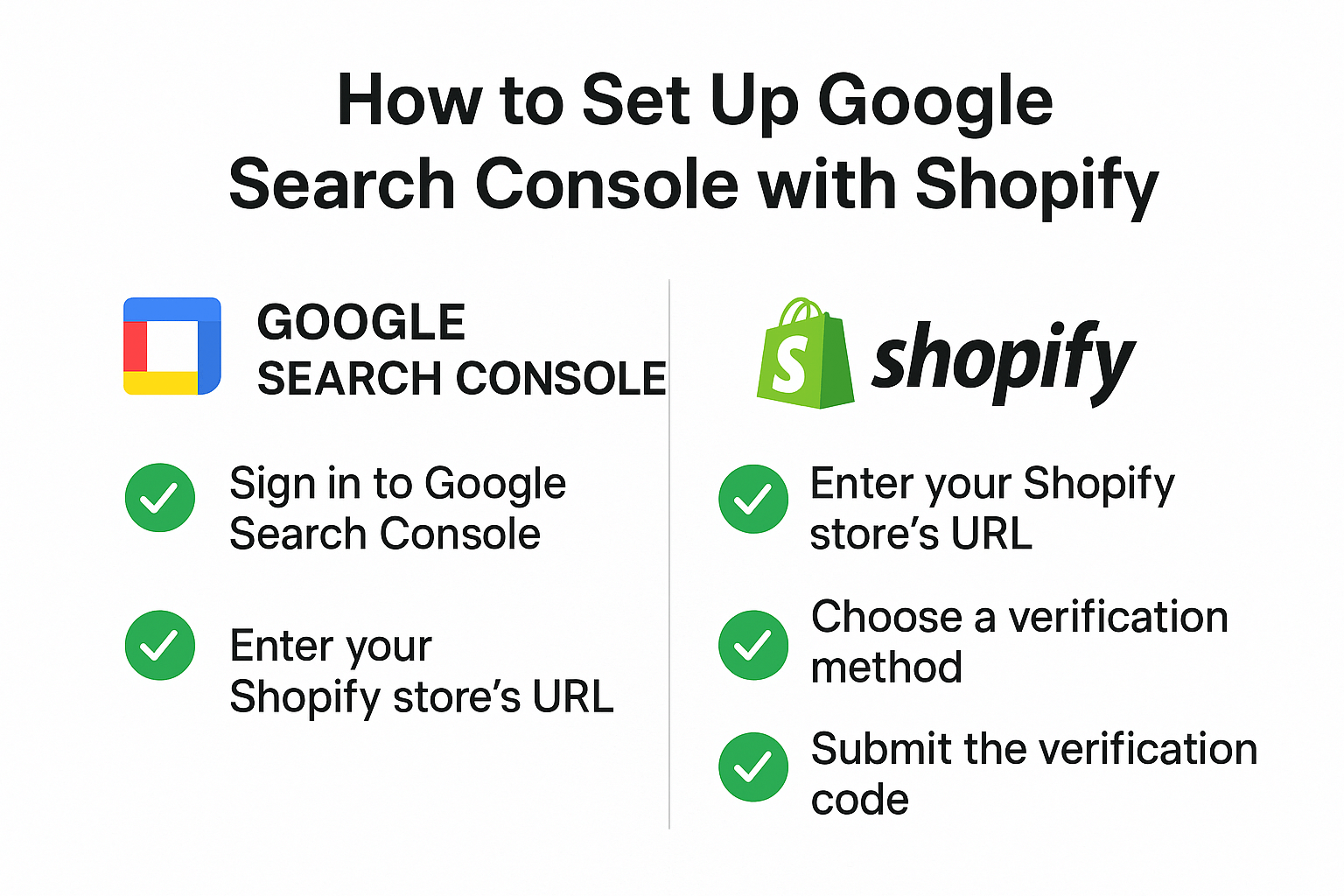
Creating your Google Search Console account takes less than five minutes, but the setup process requires attention to detail to ensure accurate data collection. Start by visiting search.google.com/search-console and signing in with your Google account. If you don’t have one, you’ll need to create a Google account first.
Once logged in, click “Add Property” and select “URL prefix” rather than “Domain” for easier Shopify integration. Enter your complete Shopify store URL, including “https://” and any subdomain if applicable. For example, if your store is “mystore.myshopify.com,” enter the full URL exactly as it appears in your browser.
Google will then provide several verification methods. For Shopify stores, the HTML tag method works most reliably and doesn’t require file uploads or DNS changes. Copy the meta tag provided by Google – it will look something like this: <meta name=”google-site-verification” content=”your-unique-code-here” />. You’ll need this code for the next step in your Shopify admin panel.
Step-by-Step Process to Verify Your Shopify Store with Google
Verification proves to Google that you own and have the authority to manage your Shopify store’s search data. Navigate to your Shopify admin panel and go to “Online Store” then “Themes.” Click “Actions” next to your current theme and select “Edit Code.”
In the code editor, locate the “theme.liquid” file under the “Layout” section. Find the <head> section – typically near the top of the file – and paste the Google verification meta tag just before the closing </head> tag. Save your changes and return to Google Search Console to click “Verify.”
If verification fails, double-check that you’ve pasted the complete meta tag without any extra spaces or characters. Some themes may cache changes, so wait 10-15 minutes before attempting verification again. Once verified successfully, Google will begin collecting data about your store’s search performance, though it may take 24-48 hours for initial data to appear.
How to Submit Your Shopify Sitemap to Google Search Console
Your sitemap acts as a roadmap that helps Google discover and index all your important pages, products, and content. Shopify automatically generates sitemaps for your store, making this process straightforward once you know where to find them.
Your main sitemap is located at “yourstore.com/sitemap.xml” – simply replace “yourstore.com” with your actual domain. Shopify creates several specific sitemaps including products, collections, pages, and blog posts. In Google Search Console, navigate to “Sitemaps” in the left menu and enter “sitemap.xml” in the submission field.
After submitting your sitemap, Google will process it and show you how many URLs were submitted versus how many were successfully indexed. A healthy e-commerce store typically sees 80-95% of submitted URLs get indexed. If your indexing rate is significantly lower, this indicates potential issues with duplicate content, thin content, or technical problems that need attention through an SEO Audit.
Understanding Google Search Console Reports That Matter Most for E-commerce
The Performance report reveals your most valuable SEO data, showing which keywords drive traffic to your products and how your store appears in search results. Focus on queries with high impressions but low click-through rates – these represent opportunities to improve your titles and meta descriptions for better performance.
Your Coverage report identifies indexing issues that could prevent customers from finding your products. Pay special attention to “Error” and “Valid with warnings” categories, as these often indicate technical problems affecting your On Page SEO. Common e-commerce issues include duplicate product descriptions, missing meta descriptions, and crawl errors on discontinued products.
The Core Web Vitals report shows how your store performs in terms of user experience metrics that Google uses for ranking. Poor Core Web Vitals scores can significantly impact both your search rankings and conversion rates. If your store shows “Poor” or “Needs Improvement” status, prioritize fixing these issues as they directly affect both SEO performance and user satisfaction.
How to Monitor Your Shopify Store’s Search Performance Effectively
Effective monitoring involves regular review of key metrics and proactive identification of opportunities and issues. Set up weekly check-ins to review your Performance report, focusing on trends in total clicks, impressions, and average position for your most important product categories.
Create a simple spreadsheet to track your top 20 performing keywords monthly, noting changes in position and click-through rates. This historical data helps you identify seasonal trends, measure the impact of SEO changes, and spot potential problems before they significantly impact your traffic.
Use the “Compare” feature in the Performance report to analyze different time periods and understand the impact of changes you’ve made to your store. For example, comparing the 30 days after updating product descriptions to the 30 days before can show you the direct SEO impact of your content improvements.
What Common Issues Should You Watch For and How to Fix Them
Mobile usability issues top the list of common problems affecting Shopify stores, as Google now uses mobile-first indexing for all websites. Check your Mobile Usability report regularly for issues like text too small to read, clickable elements too close together, or content wider than screen width. These issues directly impact both your search rankings and user experience.
Duplicate content problems frequently occur when multiple URLs display the same product information or when variant pages create similar content. Use canonical tags to indicate your preferred URLs and consider consolidating similar products into single pages with variant options rather than separate product pages.
Page loading speed issues show up in your Core Web Vitals report and directly impact both SEO performance and conversion rates. Common solutions for Shopify stores include optimizing images, minimizing app usage, and choosing faster themes. Remember that a one-second improvement in loading speed can increase conversions by up to 27% for e-commerce sites.
How to Use Search Console Data to Improve Your Shopify SEO Strategy
Transform your Search Console data into actionable SEO improvements by identifying keyword opportunities in your Performance report. Look for queries where you rank on positions 11-20 – these represent your best opportunities for quick wins with targeted optimization efforts.
Analyze your most successful pages to understand what makes them rank well, then apply these insights to underperforming pages. If certain product pages consistently rank in the top 5 for their target keywords, examine their structure, content length, and optimization elements to replicate this success across your entire product catalog.
Use the “Queries” section to discover long-tail keywords that bring qualified traffic to your store. These often represent specific product searches with high commercial intent. Create dedicated landing pages or blog content targeting these phrases to capture additional organic traffic and improve your overall Semantic SEO strategy.
Why Regular Google Search Console Monitoring Drives Long-term Success
Consistent monitoring allows you to catch and address issues before they significantly impact your organic traffic and sales. Set up email notifications in Google Search Console to receive alerts about critical issues, manual penalties, or security problems that require immediate attention.
Monthly analysis of your search performance data helps you understand seasonal trends in your industry and adjust your SEO strategy accordingly. For example, if you notice certain product categories perform better during specific months, you can proactively optimize those pages before peak seasons arrive.
Long-term success in Local SEO and e-commerce depends on understanding how your optimization efforts translate into real business results. Use Google Search Console data alongside your analytics to track the complete customer journey from search impression to purchase, enabling you to make data-driven decisions about your SEO investments.
Action Points for Immediate Implementation
Start by verifying your Shopify store in Google Search Console today – this single step will begin collecting valuable data that takes weeks to accumulate. Submit your sitemap immediately after verification to help Google discover and index your products more efficiently.
Schedule weekly 15-minute reviews of your Performance and Coverage reports to stay on top of your SEO health. Create a simple checklist including checking for new indexing errors, monitoring your top keyword positions, and reviewing Core Web Vitals scores.
Set up a monthly deep-dive analysis where you identify your best keyword opportunities, analyze successful competitor strategies, and plan content improvements based on your search performance data. This systematic approach ensures you’re continuously improving your store’s search visibility and driving sustainable organic growth.
Your e-commerce success depends on understanding how customers find your products through search engines. Google Search Console provides the roadmap to that success, offering insights that can transform your organic traffic and sales performance when properly implemented and monitored.