


Your Shopify store looks perfect when you visit it, but Google isn’t seeing half your content. Your product descriptions disappear, your customer reviews vanish, and your carefully crafted category pages become ghost towns in search results. Sound familiar? You’re dealing with JavaScript rendering issues – one of the most overlooked yet critical problems affecting modern e-commerce stores.
As someone who’s spent over 8 years providing SEO services and specifically Shopify SEO solutions, I’ve seen countless store owners lose thousands in revenue because search engines couldn’t properly crawl their JavaScript-heavy pages. The good news? These issues are completely fixable once you know how to spot them.
Why JavaScript Rendering Issues Kill Your Shopify Store’s SEO Performance
JavaScript rendering problems aren’t just technical hiccups – they’re revenue killers. When Google’s crawlers can’t properly execute your site’s JavaScript, they miss crucial content that drives organic traffic. Recent studies show that 73% of e-commerce sites have some form of JavaScript rendering issue affecting their search visibility.
Your Shopify theme might load beautifully for human visitors, but if Googlebot can’t see your product reviews, dynamic pricing, or user-generated content, you’re essentially invisible for those high-intent search queries. This directly impacts your ecommerce SEO efforts and can slash your organic traffic by up to 60%.
The most common casualties include dynamically loaded product descriptions, AJAX-powered filtering systems, and customer review sections – all critical elements for both user experience and search engine optimization.
What Causes JavaScript Rendering Problems in Shopify Stores?
Understanding the root causes helps you prevent these issues before they impact your SEO audit results. Most JavaScript rendering problems in Shopify stores stem from theme customizations, third-party app conflicts, and improper implementation of dynamic content loading.
Heavy themes with complex JavaScript frameworks often create rendering delays that exceed Google’s crawl budget timeout. When your page takes longer than 5 seconds to fully render, search engines might abandon the crawl altogether, leaving your content unindexed.
Third-party apps adding their own JavaScript layers can create conflicts, especially when multiple apps try to modify the same page elements. I’ve seen stores with 15+ apps where JavaScript conflicts made entire product categories invisible to search engines.
Server-side rendering issues also play a significant role. Many Shopify themes rely heavily on client-side JavaScript for content display, but if the initial HTML doesn’t contain meaningful content, search engines might not wait for the JavaScript to execute completely.
How Do You Know If Your Shopify Pages Have JavaScript Rendering Issues?
The symptoms aren’t always obvious, but there are clear warning signs every store owner should watch for. Sudden drops in organic traffic without corresponding changes to your products or content often indicate rendering problems affecting your on page SEO.
Check your Google Search Console for pages with declining impressions despite stable search volumes. If your product pages are losing visibility for branded searches, JavaScript rendering issues could be preventing Google from properly indexing your content.
Another red flag is when your site’s loading speed varies dramatically between different devices or network conditions. Mobile users might experience completely different content rendering compared to desktop visitors, creating inconsistencies that search engines flag as quality issues.
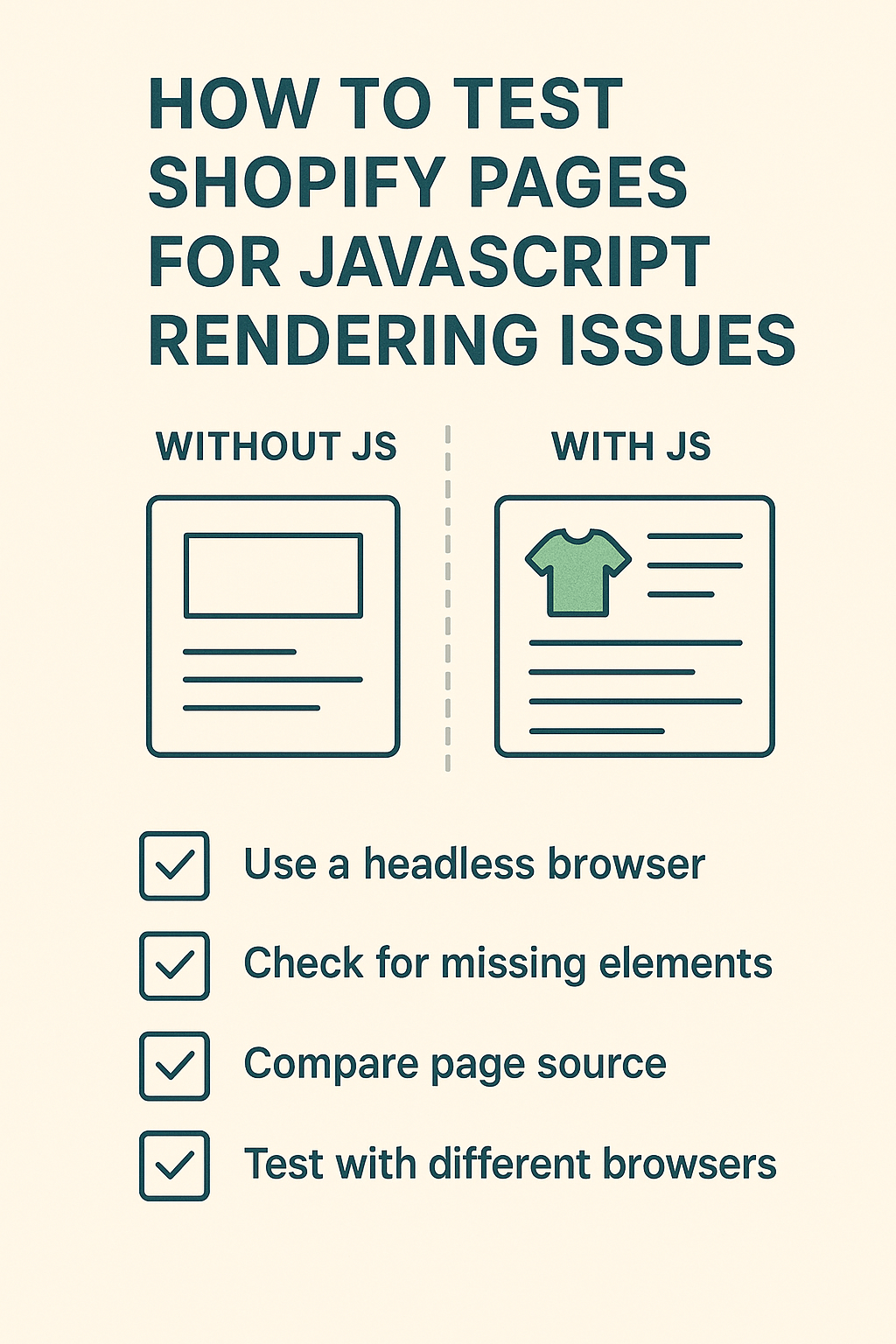
Compare your site’s visible content when JavaScript is disabled versus enabled. If critical elements like product descriptions, pricing, or navigation disappear without JavaScript, you’ve identified a potential SEO problem that needs immediate attention.
What Tools Should You Use to Test JavaScript Rendering?
Google Search Console’s URL Inspection Tool remains your first line of defense for identifying rendering issues. This free tool shows you exactly how Googlebot sees your pages, highlighting discrepancies between the raw HTML and rendered content.
The “View Tested Page” feature reveals whether your JavaScript-dependent content actually loads for search engines. Pay special attention to the screenshot comparison – if it looks drastically different from your live site, you’ve found your problem.
Chrome DevTools offers deeper insights through its Coverage tab, which shows you exactly which JavaScript and CSS files are actually being used. Unused code can slow down rendering and create unnecessary complexity for search engine crawlers.
Screaming Frog SEO Spider provides comprehensive JavaScript rendering analysis for your entire site. Configure it to crawl with JavaScript enabled and compare results against JavaScript-disabled crawls to identify affected pages quickly.
For local SEO considerations, test your store’s location-based content rendering, especially if you’re using JavaScript to display different content based on visitor geography.
How Can You Test JavaScript Rendering Using Google Search Console?
Start by accessing Google Search Console and navigating to the URL Inspection Tool. Enter your most important product or category page URLs to see how Google actually renders your content.
The “Test Live URL” function provides real-time insights into rendering performance. Click this option and wait for Google to fetch and render your page – the process usually takes 10-30 seconds for most Shopify stores.
Review the screenshot carefully, comparing it against your live site appearance. Missing product images, absent customer reviews, or incomplete product descriptions indicate JavaScript rendering failures that impact your search visibility.
Check the “More Info” section for specific rendering errors or resource loading failures. Common issues include blocked CSS or JavaScript files, timeout errors, and memory allocation problems that prevent complete page rendering.
Document any discrepancies and prioritize fixing pages that generate the most organic traffic or revenue for your store.
What Are the Most Effective Ways to Fix JavaScript Rendering Issues?
Server-side rendering (SSR) implementation provides the most comprehensive solution for JavaScript rendering problems. This approach ensures that your page content is fully rendered before being served to both users and search engines.
Many modern Shopify themes now support SSR out of the box, but older themes might require developer intervention. Consider upgrading to a more recent theme that prioritizes search engine compatibility alongside visual appeal.
Implement proper lazy loading for non-critical elements while ensuring essential content loads immediately. Product titles, descriptions, pricing, and primary images should always be available in the initial HTML response without requiring JavaScript execution.
Critical rendering path optimization helps prioritize essential content loading. Inline critical CSS and defer non-essential JavaScript to prevent rendering delays that might cause search engines to abandon your pages.
Regular semantic SEO audits help identify content that’s become inaccessible to search engines due to JavaScript changes or theme updates.
How Should You Monitor JavaScript Rendering Performance Ongoing?
Establish a monthly monitoring routine using Google Search Console to track rendering performance across your most important pages. Set up alerts for sudden changes in crawl errors or indexing issues that might indicate new JavaScript problems.
Create a testing checklist that includes your homepage, main category pages, top-selling product pages, and any pages with dynamic content loading. Test these pages whenever you install new apps, update your theme, or make significant customizations.
Use Google PageSpeed Insights to monitor Core Web Vitals metrics, which directly correlate with JavaScript rendering efficiency. Poor scores often indicate underlying rendering issues that affect both SEO performance and user experience.
Track organic traffic patterns for JavaScript-heavy pages using Google Analytics. Unexpected traffic drops without corresponding search volume changes often signal rendering problems affecting search visibility.
What Preventive Measures Can Protect Your Shopify Store?
Choose themes and apps that prioritize search engine compatibility from the start. Before installing any new app, research its impact on page loading times and JavaScript complexity.
Maintain a development staging environment where you can test changes before applying them to your live store. This prevents JavaScript conflicts from affecting your search rankings unexpectedly.
Regular backups ensure you can quickly revert changes that introduce rendering issues. Schedule weekly backups and document all theme modifications or app installations for easy troubleshooting.
Work with developers who understand e-commerce SEO requirements when customizing your Shopify theme. Many rendering issues stem from well-intentioned customizations that inadvertently break search engine compatibility.
Action Points for Immediate Implementation
Start by testing your five highest-traffic pages using Google Search Console’s URL Inspection Tool today. Document any rendering discrepancies and prioritize fixes based on page importance and traffic volume.
Review your current app stack and identify any recently installed apps that might be causing JavaScript conflicts. Temporarily disable suspicious apps to isolate rendering problems.
Implement structured data markup using JSON-LD format to ensure product information remains accessible even if JavaScript rendering fails. This provides a fallback for search engines to understand your content.
Schedule monthly JavaScript rendering audits as part of your ongoing SEO services maintenance routine. Early detection prevents small issues from becoming major search visibility problems.
Monitor your Core Web Vitals scores and address any JavaScript-related performance issues that might affect both user experience and search rankings.
Ready to optimize your Shopify store’s JavaScript rendering for better SEO performance? Our expert team at Hey Sell It specializes in technical Shopify SEO solutions that drive real results. Contact us today for a comprehensive SEO audit and personalized optimization strategy.